Build Notes
Finding My Blog’s Real Traffic: GA4 and Search Console in WordPress
After moving Tech Trend Insight from Blogger to WordPress on Hostinger, I opened one of my articles and asked a surprisingly basic question: where do I see how many people have read this?
Hostinger had a traffic dashboard. Blogger still had its old counters. Google Analytics opened a setup screen that made it look as though I had never registered. Search Console showed another set of numbers. None of those screens answered quite the same question.
This is the follow-up to my migration of 70 posts from Blogger to Hostinger: how I connected the existing Google Analytics 4 property and Search Console through Site Kit, and what I now check before treating a number as readership.
Configuration and screenshots checked on November 7, 2026. These are setup observations, not a claim of traffic growth after the migration. Screenshot date ranges include time before the move.
The first mistake: treating every traffic number as a view
The Hostinger traffic screen was useful for checking requests, countries and errors. But a server request is not a reader opening an article. One page can request images and other files, and automated traffic can reach the server too.
That meant I needed to separate three questions:
- Is the server receiving traffic? Check hosting traffic and error reports.
- Which pages are being viewed? Check GA4 page views and user metrics.
- Are people finding the site on Google? Check Search Console impressions and clicks.
These systems measure different activity. Their totals are not expected to match, even when every connection is working.
The Analytics account already existed
The next confusing moment was an Analytics account-creation screen. My first reaction was that I must not have signed up.
In our case, that was the wrong diagnosis. The browser was on the new-account setup route. Opening the existing account and property showed a working Pages and screens report with historical data. I did not need another account or an empty replacement property.
The practical check was to confirm the Google account, then select the property and web stream belonging to this site. A setup screen alone was not evidence that the old property was missing.
Connecting Site Kit without adding a second tracking installation
I installed the official Site Kit by Google plugin from the WordPress plugin directory. The aim was to bring the existing reports into WordPress, where I already manage the articles.
During setup, I connected the Google account that could access the existing property, completed the requested authorization, and selected the existing GA4 property and the website stream. Search Console was connected to the site’s existing domain property as well.
One detail mattered: the site already had a Google Analytics tracking snippet. Site Kit detected it, so I left its additional Analytics code-placement option off and retained the working installation.
This was a choice for this site, not a universal instruction to turn tracking off. If a site has no Analytics tag, connecting a reporting dashboard alone does not replace the need to collect data. Site Kit’s Analytics documentation explains how it handles an existing snippet and the connected property.
After connecting, we checked a live page for the expected Google tag script and configuration call. The check found one of each for the existing measurement ID. That was a useful check against an obvious duplicate installation; it was not proof that every possible tracking issue had been ruled out.
Where I now look for article views
Inside WordPress, I open Site Kit → Dashboard → Top content over the last 28 days. The table puts page paths beside Pageviews, Sessions and engagement information.
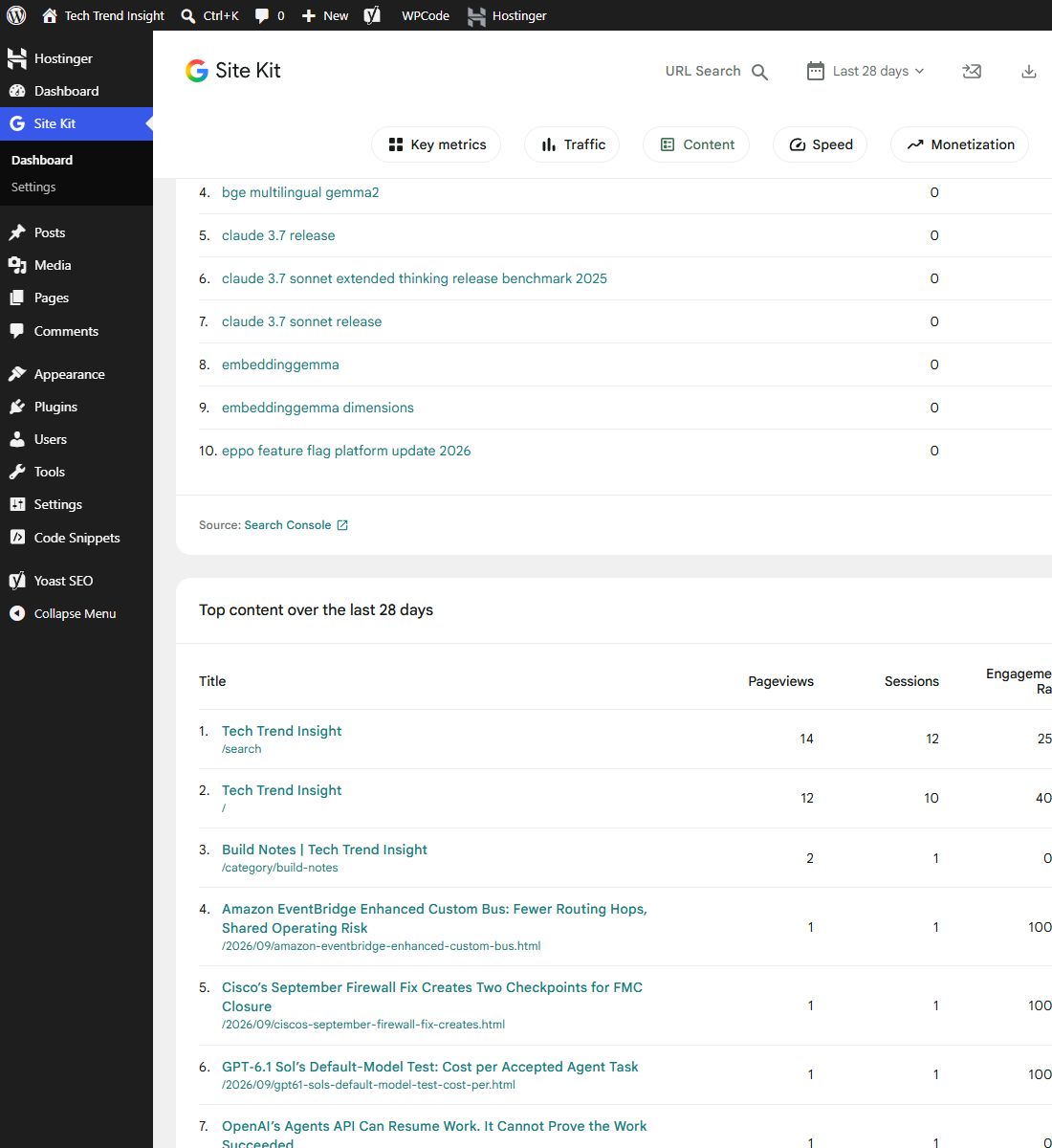
Pageviews are the number of recorded page views. Repeated views can be counted, so 20 views does not necessarily mean 20 different people. Sessions describe visits containing activity. User metrics answer another question again; in GA4’s Pages and screens report, the column I checked was Active users.
For one article, I can open the article while logged into WordPress and select Site Kit → More details in the top administrator toolbar. This opens that page’s report. I can also use Site Kit’s URL search to find a particular post.
The quick toolbar panel shows users, sessions and search metrics, so I do not read every number in it as a page-view counter. For a direct comparison of article views, I use the Pageviews column in the content table or the Views column in GA4’s Pages and screens report.
These are administrator reports. Connecting Site Kit did not add a public view counter underneath each article.
Search Console clicks are a different kind of visit
The existing Search Console domain property still contained search history after the hosting move. That made sense for this migration: the domain and existing article addresses were preserved.
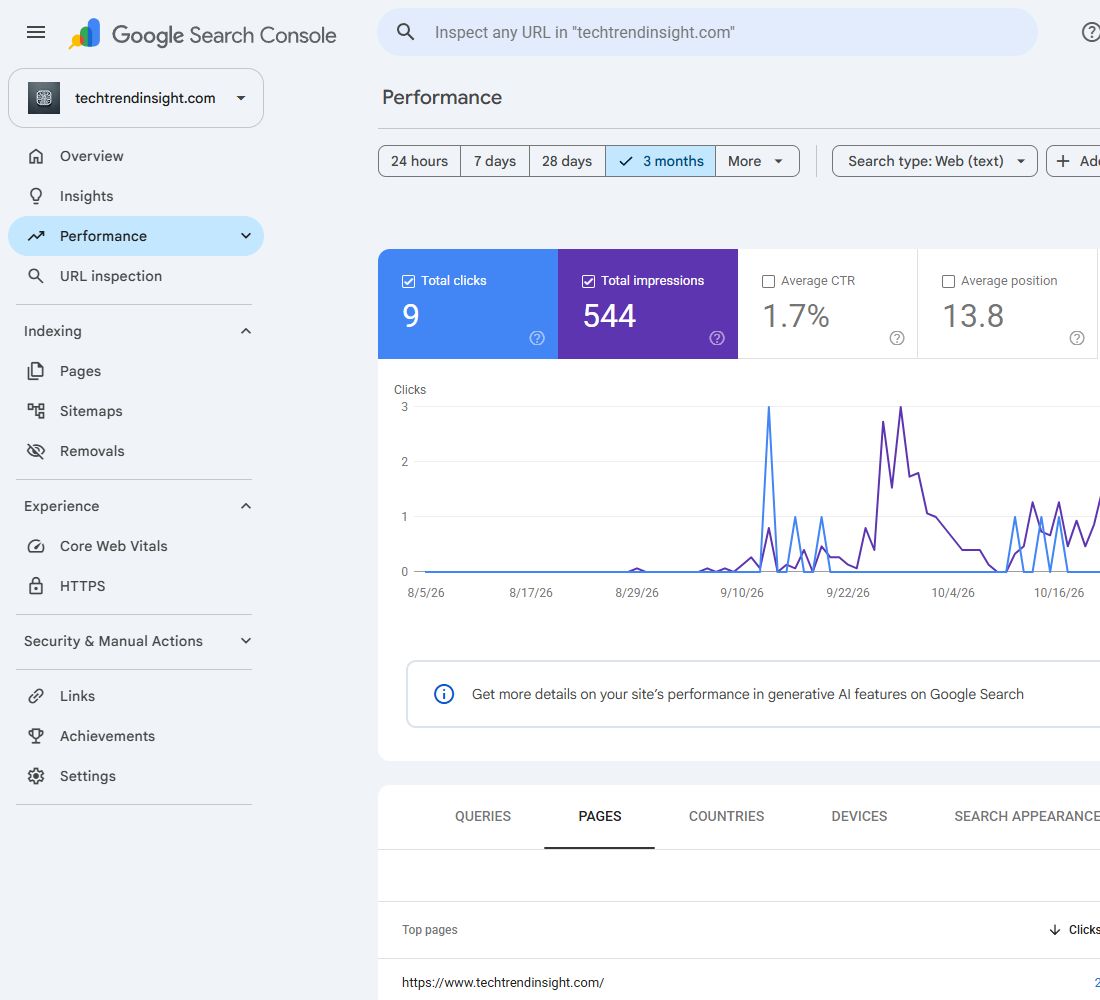
An impression records visibility in Google Search under Google’s reporting rules. A click records someone clicking through from Google. Opening an article directly, or following a link from X, is not a Google Search click. Google’s definitions of impressions and clicks describe the reporting details.
I use the Pages tab to compare article URLs, and a page filter when I want to examine one article’s search performance. I also check the date range before comparing it with Analytics. The screenshots here deliberately show different reports, not matching totals.
Why my own click did not immediately appear
When I first opened the Gemini article’s individual Site Kit report, it showed zero visitors and a message saying there was not enough traffic. That was the displayed report state, not a reliable conclusion that nobody had ever opened the page.
Standard Analytics reports need processing time. Google says processing can take 24–48 hours, while Realtime typically updates within a few minutes. A test visit also depends on the tag running, consent choices, blocking software and any applicable filters.
I therefore separate a collection check from a readership report: use Realtime for a controlled test, then return to the normal report after processing. I also avoid treating my own testing activity as evidence of an independent reader.
The old Blogger counter did not move with the posts
Importing article content did not import Blogger’s accumulated view counts into WordPress or add them to GA4. Blogger’s historical counter remains a separate record. The existing GA4 property retains the data it actually collected; it cannot reconstruct visits that were never recorded there.
That is why I will not compare an all-time Blogger total with a 28-day Analytics report and call the difference a migration loss. The time windows, collection methods and metrics differ.
My routine for the next post
- Publish the article in WordPress and check its final URL, images and category.
- Confirm it is included in the sitemap and permitted to be indexed. Sitemap discovery does not guarantee indexing.
- Use Site Kit or GA4 to review article views after data has processed.
- Use Search Console separately to review search impressions, clicks and indexing status.
- Compare the same date ranges, and keep migration-day testing in mind when interpreting small numbers.
The most useful result of this setup was being able to connect an article URL to the right report. I can now check recorded reading activity in WordPress and search visibility in Search Console without assuming that server requests, page views and Google clicks describe the same thing.