Build Notes
Codex CLI 0.169.0: How to Use Side Chats, Task Search and Collapsed Details
Codex CLI 0.169.0 makes long terminal sessions easier to navigate. Released on November 13, 2026, it adds saved side-chat tabs, broader task search, and a way to fold completed activity. This guide shows how to approach those changes, building on the workspace introduced in 0.168.0.
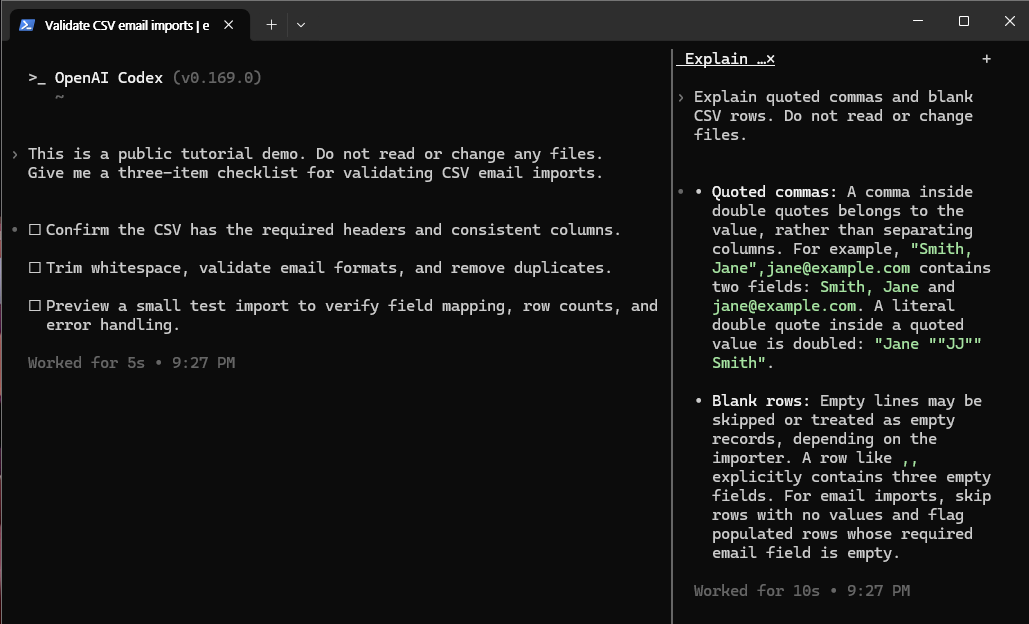
1. Check your CLI version and enable the workspace
In the terminal where you normally run Codex, check which CLI version is on your path:
codex --versionIf you installed the CLI through npm and want the version discussed here, use the versioned package, then check again:
npm install -g @openai/codex@0.169.0
codex --version
Keep using your existing installation method if you installed through another package manager. Updating the desktop app alone does not establish which standalone CLI your terminal runs. See the official CLI setup guide.
For the optional terminal workspace, merge this setting into your existing Codex config.toml (normally under ~/.codex/). Add the key to your existing [features] table rather than creating a duplicate table or replacing the entire file.
[features]
tui_workspace = true
Restart the CLI after saving. Version 0.168.0 introduced the side-by-side workspace; 0.169.0 extends it with multiple tabs and reopening saved local side chats. 0.168.0 release notes · 0.169.0 release notes.
Windows: try it without changing your saved configuration
In PowerShell, npx.cmd can be used when execution policy blocks the npx.ps1 launcher:
npx.cmd --yes @openai/codex@0.169.0 --enable tui_workspace --no-daemon--no-daemon runs this demonstration independently of the shared background server. If a server feature-settings prompt appears instead, choose Run without daemon this time to avoid restarting an active shared server. The startup warning identifies tui_workspace as under development; enabling it does not make it a stable default feature. Use a terminal at least 100 columns wide for the side-by-side view.
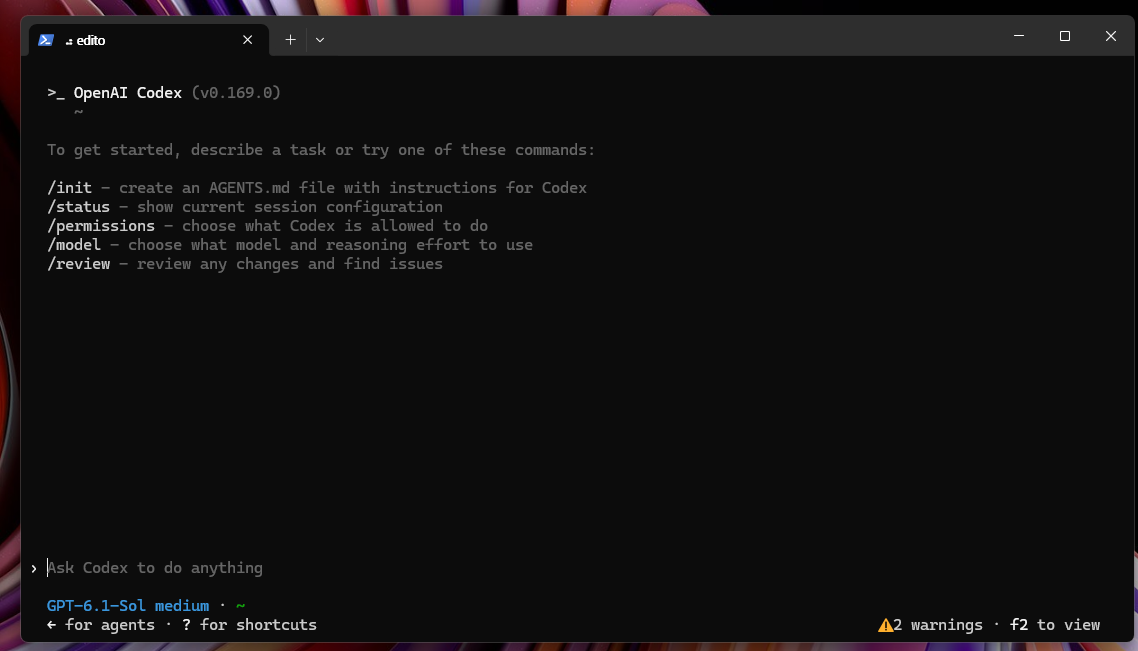
2. Use a side chat for a focused question
Here is the no-file-change CSV example used in the screenshots. Enter this in the main conversation:
This is a public tutorial demo. Do not read or change any files.
Give me a three-item checklist for validating CSV email imports.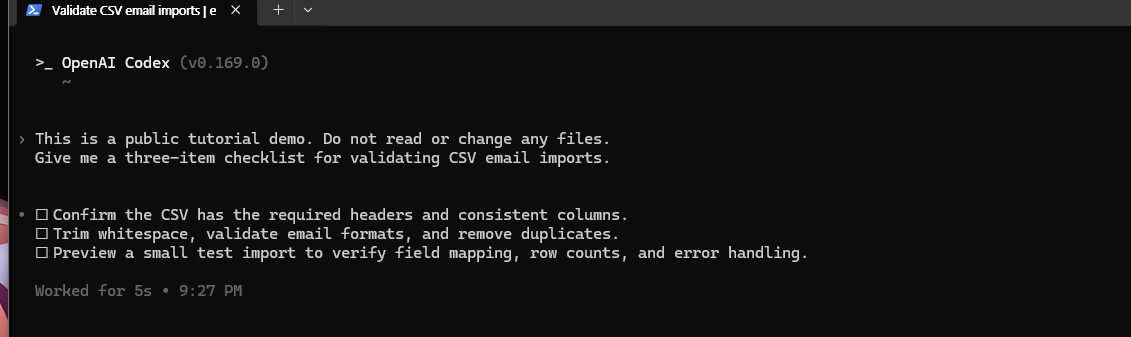
Then use a side conversation for a separate question. The upstream side-chat implementation supports /side with a prompt to request a new side chat:
/side Explain quoted commas and blank CSV rows. Do not read or change files.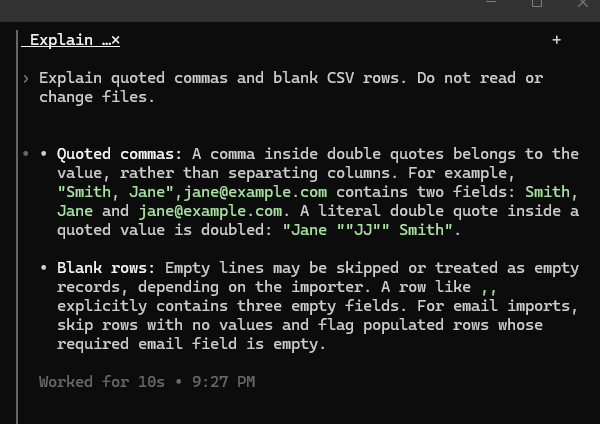
Use the workspace tabs to return to the implementation conversation. Ask that conversation to evaluate any checklist items you want incorporated. A separate pane is useful for organizing discussion; do not treat it as an isolated filesystem or a separate permission boundary. The no-edit instruction above states the intent of this example.
Source for the command behavior: OpenAI’s side-chat implementation. Availability depends on the enabled workspace features and your installed version.
3. Find an older task instead of starting over
Open the agent command center and search using a distinctive task name, a phrase from the original prompt, or the working directory. For the example above, try CSV import validation or the project’s directory name. Version 0.169.0 searches older history beyond the tasks already loaded for browsing.
To open the command center separately in Windows, start another terminal tab and run:
npx.cmd --yes @openai/codex@0.169.0 agents --no-daemonIn the task list, press / to enter search, then type csv. The search field is at the upper left. Select the matching task to inspect its details on the right before opening it.
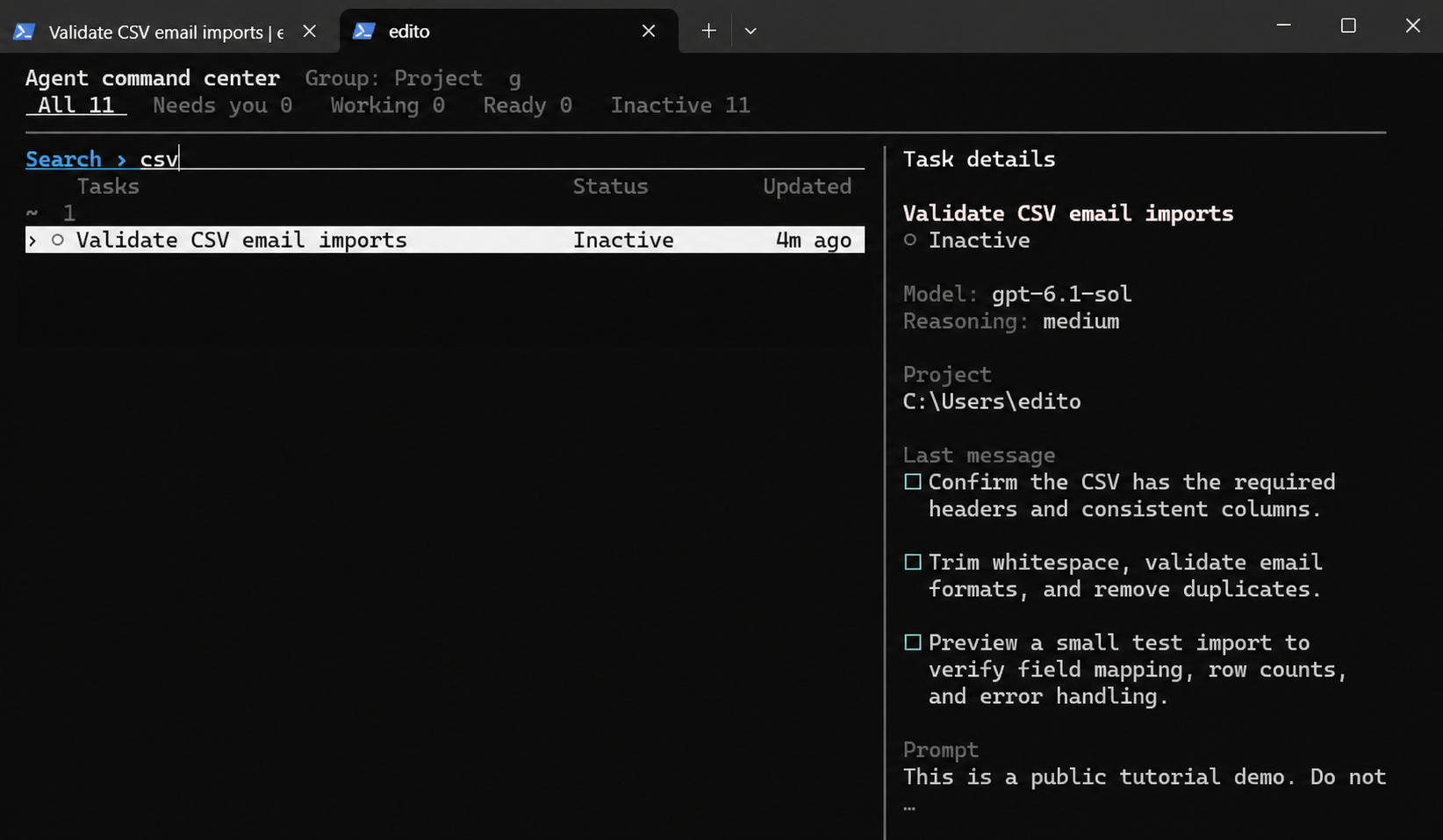
Check the matching task’s preview and directory before continuing it. A practical habit is to include the component and goal in the opening prompt: “CSV importer: validate missing email addresses” is easier to recognize later than “fix this.” See the official task-history search change.
4. Keep the answer visible while reducing transcript clutter
In the full-screen transcript, enable Collapse turn details. Completed activity folds beneath its prompt while answers stay visible and tool output remains searchable. For a long debugging session, use the folded view to review conclusions, then inspect activity when you need evidence behind a change.
What to try first
Start with one small implementation task and one explanatory side chat. Return to the task, review the diff and relevant test results, then search for the task again later. This gives each navigation improvement a concrete job without assuming that an update changes your model, account limits, or desktop features.
For release dates and related announcements, visit our Codex Update history. Official sources: CLI 0.168.0 and CLI 0.169.0, both announced November 13, 2026 UTC.