AI Technical Articles
Tripo Studio MCP: From a Reference Image to a Blender Asset
One reference image can give you a chair to import into Blender. Building a scene still means deciding where the chair goes, how large it should be, and whether it looks right from the angles your camera will see.
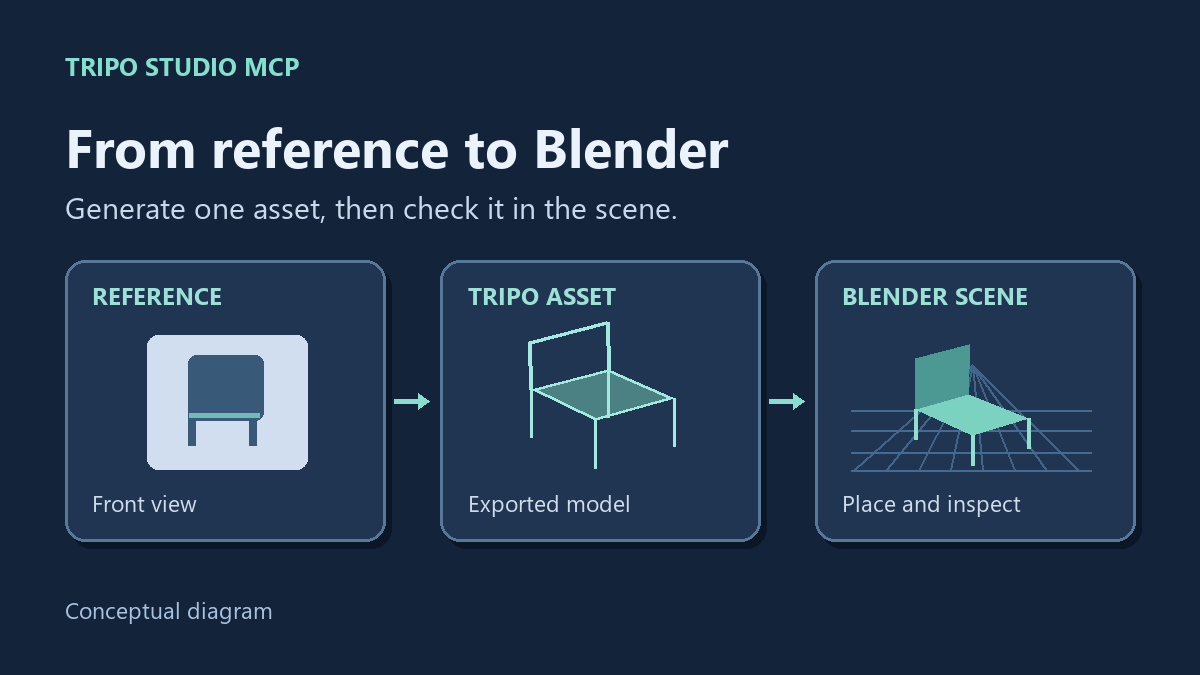
Tripo Studio MCP lets an AI assistant request and retrieve a 3D asset from Tripo. If the assistant also has a way to control Blender, it can continue from the exported asset into the scene. That handoff is where a small test can tell you whether the automation saves useful work.
Where the 3D work happens
Model Context Protocol, or MCP, gives an AI application a way to call tools from another service. The assistant can send a generation request, check the job, and retrieve the result. Tripo’s service does the generation, creating an asset that another program can open. The mesh is the geometry that gives the object its shape.
Tripo’s Studio MCP announcement describes generation from images or text and follow-up operations such as texturing and remeshing, which changes how the surface is built from polygons. Each extra operation should solve a problem you can see in the asset. A few uneven faces may be fine for a chair in the background. A chair in a close-up may need a cleaner silhouette and more careful materials.
What goes from Tripo to Blender?
The handoff is a model file. For example, you can take a compatible GLB export and import it into Blender. GLB is the single-file form of glTF and can package geometry and materials together. From there, you can place the object yourself. For automated placement and scene editing, the assistant needs a separate Blender connection. Khronos glTF specification · Tripo’s Blender workflow
A front-facing photo of a chair gives the generator evidence about its front. It leaves the rear joints and underside largely to inference. Consider how that affects a shot that moves behind the chair. A good front view cannot tell you whether the legs connect cleanly to the frame at the back. Import the model into a scratch scene, rotate around it, and compare its height to an object already set to the right scale.
Run one job before you automate a scene
- Choose one object. Use a clear reference you have permission to upload. Decide where the object will appear so you know which angles, dimensions, and material details matter.
- Review the export in Blender. Check its shape from the planned camera angles, then verify its scale, orientation, and materials in a temporary scene. A job can finish successfully while leaving you with an asset that still needs work.
- Measure the cleanup. Note the credits spent and the time it takes to correct the model and place it. If several assets share the same problem, fixing the input or export settings first can save repeating that cleanup after every import.
Tripo says the Studio MCP connection uses OAuth, a sign-in flow that grants the assistant access to your Studio account. Personal accounts, including Free accounts, are supported under the published terms. Team accounts are currently excluded from Studio MCP. Generation uses your Studio credits, so check the available balance and task cost before asking for variations. Tripo’s account and credit details
For a first trial, ask whether one exported asset meets the needs of your actual shot and how long it takes to get it there. That gives you a basis for deciding whether to automate the next batch or keep the Blender handoff manual.