A notebook can run successfully in your current session and still fail on a colleague’s machine. The workflow below makes three dependencies explicit: the project environment, the active kernel, and the order in which cells execute. It then adds complete synthetic inputs, parameterized runs, and exports so a beginner can check that the result survives a clean rerun.
Key Takeaways:
- Check the Kernel’s Environment: A common beginner problem is installing a library into one Python environment while the notebook kernel runs in another.
- Environment Management in 2026: Tools such as
uvandpixican help manage isolated, locked environments. Speed depends on the workload; a fast installation alone does not make an analysis reproducible.- Defending Against Hidden Out-of-Order State: Notebooks must be tested with strict "Restart Kernel and Run All" protocols before code commit to prevent invisible variable dependencies.
- Graduation Path: Jupyter excels at exploratory data analysis and visual communication; production transformations should graduate into modular Python packages orchestrated via CI/CD test runners.
Few open-source tools have transformed scientific research, machine learning, and data analytics as profoundly as the Jupyter Notebook ecosystem. By uniting executable Python code, mathematical notation, data visual rendering, and explanatory prose in a single living document, Jupyter revolutionized technical transparency.
Yet, as we navigate 2026, many beginners and enterprise newcomers remain trapped in the same foundational pitfalls that plagued developers a decade ago: unpinned package dependencies, broken kernel linkages, out-of-order cell execution states, and unrepeatable results. A notebook that works only in its author’s existing session is difficult for a colleague to inspect or reproduce. The aim here is to make the environment, input data, and execution order explicit.
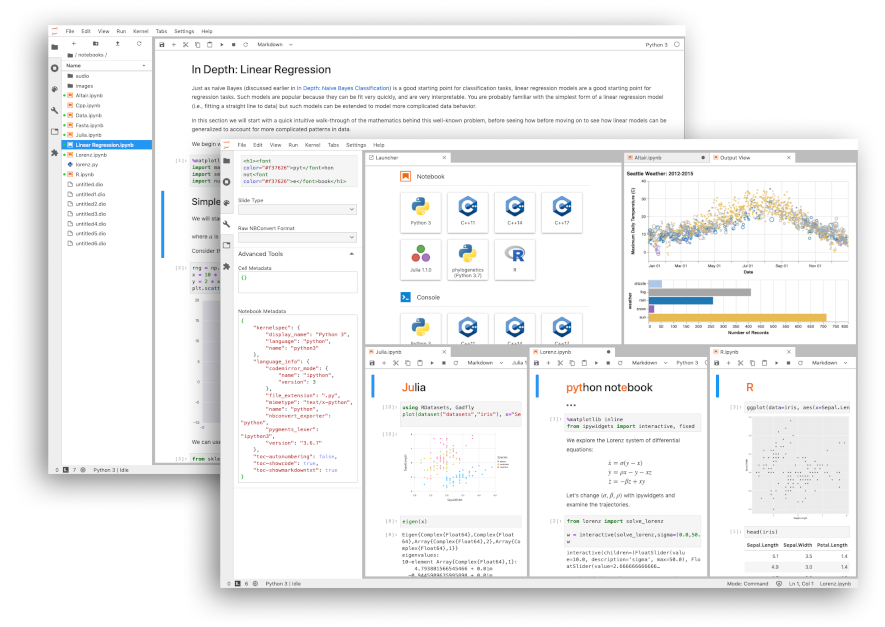
The Four Architectural Layers: Interface, Notebook, Kernel, and Environment
Separate the interface, saved notebook, running kernel, and package environment when debugging. In a local JupyterLab setup, a server manages files and kernel sessions. The notebook file stores cells and outputs; it is not an execution process. This distinction helps you locate a fault without reinstalling everything.
Why Beginners Run into "ModuleNotFoundError"
Suppose pip install seaborn succeeds in a terminal but import seaborn fails in a notebook. One possible explanation is that the terminal and notebook use different Python environments. Other causes include a misspelled import, an incomplete installation, or a conflicting local filename. Inspect the interpreter before deciding which environment needs a change.
Always verify the exact binary your notebook is executing by adding this single diagnostic check in cell 1:
import sys
print(f"Active Interpreter: {sys.executable}")
print(f"Python Version: {sys.version.split()[0]}")
Environment Management: Comparing Modern Toolchains in 2026
Choose a tool by the environment you need to reproduce, not an unqualified speed multiplier. Resolution and installation time depend on package size, network access, caches, platform, and native builds. These options have different scopes:
| Toolchain | What you save | Useful when / limitation |
|---|---|---|
| uv project | pyproject.toml and uv.lock | A Python-focused workflow. Supports wheels and source builds; native build prerequisites may still be needed. |
| Pixi | Workspace manifest and pixi.lock | A workspace combining conda packages and PyPI dependencies. Native libraries can be part of the environment; a compatible GPU driver remains a host responsibility. |
| Poetry | pyproject.toml and poetry.lock | Python dependency management and packaging. A lockfile does not install arbitrary operating-system dependencies. |
| venv + pip | A separately maintained, pinned dependency specification | A standard-library environment baseline. Creating a venv alone does not resolve or lock dependencies; an unpinned requirements file is not a reproducible lock. |
Pixi and conda are not interchangeable names for one lock format. For this beginner workflow, use one uv project rather than mixing several managers in the same environment. If your organisation already provides a maintained environment, follow that standard instead.
Inside a notebook file
analysis_pipeline.ipynb
Illustrative two-cell JSON document
nbformat_minor: 5
metadata: { ... }
id: "intro" · metadata: {}
source: "# A tiny calculation"
id: "calc" · metadata: {}
execution_count: 1
source: "print(2 + 2)"
Stored output is a snapshot—not proof of a fresh run.
A clean project setup with uv and JupyterLab
First install uv from Astral’s official instructions. Then run the following in a terminal, one line at a time. The commands work without manually activating a virtual environment. They create a new project; do not run them over an existing project with the same name.
# Install uv first using Astral's official installation instructions.
# Run these commands in a parent folder where this project does not exist.
uv init --python 3.12 notebook-lab
cd notebook-lab
uv add pandas numpy matplotlib
uv add --dev jupyterlab ipykernel nbconvert papermill nbdime
uv sync --locked
uv run --locked jupyter lab
Select the project’s Python kernel and create analysis_pipeline.ipynb in the project root. In the first code cell, check sys.executable; the path should point into this project’s .venv. A friendly kernel display name alone does not prove which interpreter is running. If the path points elsewhere, select the appropriate kernel before continuing.
uv add records dependencies and updates the lockfile. Keep pyproject.toml, uv.lock, and .python-version with the notebook; do not commit the .venv directory. On another machine, use uv sync --locked. It fails when the lock is missing or inconsistent instead of silently accepting a new resolution. See uv’s lock and sync rules.
The initial 3.12 selection is a Python minor-version choice, not a promise of the same patch release forever. Record the actual Python version, operating system, and dataset version for a serious analysis. A lockfile controls dependencies; it does not freeze remote data, system libraries, hardware, or random-number behavior.
Building Reproducible Notebooks: A Defensive Coding Template
The original example required a production CSV that readers did not have. This replacement supplies three invented measurements and validates them before calculating a mean. Create the following two code cells in order. Use the first cell’s metadata/tag editor to add the tag parameters if you will run the Papermill command in the next section.
# Cell 1: add the tag "parameters" in JupyterLab's cell metadata.
DATASET_DATE = "2026-09-18"
# Cell 2: a complete synthetic example; no production files are required.
from io import StringIO
import sys
import numpy as np
import pandas as pd
import matplotlib.pyplot as plt
print("Interpreter:", sys.executable)
print("Python:", sys.version.split()[0])
print("pandas:", pd.__version__)
CSV_TEXT = """timestamp,response_latency_ms
2026-09-18T09:00:00Z,120
2026-09-18T09:01:00Z,180
2026-09-18T09:02:00Z,150
"""
def load_and_validate_telemetry(source):
df = pd.read_csv(source)
required = {"timestamp", "response_latency_ms"}
if not required.issubset(df.columns) or df.empty:
raise ValueError("Expected nonempty timestamp and latency columns.")
df["timestamp"] = pd.to_datetime(df["timestamp"], utc=True, errors="raise")
latency = pd.to_numeric(df["response_latency_ms"], errors="raise")
if df["timestamp"].isna().any() or not np.isfinite(latency.to_numpy(dtype=float)).all():
raise ValueError("Timestamps and latencies must not be missing or non-finite.")
if (latency < 0).any():
raise ValueError("Latency cannot be negative.")
df["response_latency_ms"] = latency
return df
df = load_and_validate_telemetry(StringIO(CSV_TEXT))
day = pd.Timestamp(DATASET_DATE).date()
selected = df.loc[df["timestamp"].dt.date == day].copy()
if selected.empty:
raise ValueError("No rows for DATASET_DATE; do not publish an empty report.")
print(f"Rows: {len(selected)}; mean latency: {selected['response_latency_ms'].mean():.1f} ms")
selected.plot.bar(x="timestamp", y="response_latency_ms", legend=False)
plt.title("Synthetic fixture — not production performance")
plt.ylabel("Response latency (ms)")
plt.xticks(rotation=30, ha="right")
plt.tight_layout()
plt.show()For the supplied date, the expected output is Rows: 3; mean latency: 150.0 ms. The chart shows 120, 180, and 150 milliseconds in timestamp order. These are synthetic teaching values, not measurements of Jupyter, an AI model, or a production service. Changing the selected date to one with no rows should raise an error rather than produce a misleading empty report.
For your own data, replace StringIO(CSV_TEXT) with a file path relative to the project root, and record the input’s version or checksum. Keep credentials and private datasets out of the notebook repository. Explicit ValueError checks remain active when Python assertions are disabled. A random seed can help repeat a stochastic step, but this example needs no randomness, and seeds alone do not guarantee identical results across libraries or machines.
Validation note — September 19, 2026: The supplied fixture was executed in an isolated Windows environment using Python 3.12.10 and pandas 3.0.6. Parameterized execution, chart output, HTML export, notebook comparison, and seven invalid-input checks passed. This verifies the teaching example, not every platform or future package version.
Now restart the kernel and run every cell from the top. A previously displayed chart is only saved output; it does not prove that the current source produces it. If a cell fails, fix the dependency or execution-order problem and repeat the clean run before sharing the notebook.

Automating Notebook Quality in CI/CD with Papermill
Save the notebook in the project root with the two cells above and the parameters tag on the first cell. Papermill supplies parameter values; it does not magically fetch a daily production dataset. The example below simply selects a date from the included fixture. The notebook tools were installed in the setup section.
# Execute with a fresh kernel and an explicit parameter.
uv run --locked papermill analysis_pipeline.ipynb output_report.ipynb -k python3 -p DATASET_DATE "2026-09-18"

# Export the executed result, hiding code inputs (not sensitive outputs).
uv run --locked jupyter nbconvert --to html --no-input output_report.ipynb

# Compare two saved notebooks explicitly.
uv run --locked nbdiff analysis_pipeline.ipynb output_report.ipynb
Keep the input notebook separate from the executed report. Review output files for private values before sharing; hiding code is not redaction. For a simple execution check without parameter injection, use uv run --locked jupyter nbconvert --to notebook --execute analysis_pipeline.ipynb. Do not enable --allow-errors when an error should fail the check.
In CI, install the chosen Python and uv versions, restore the project from the checked-in lockfile, and run the same command from the same working directory. Pass secrets through the CI platform’s protected mechanism, not notebook cells. For production transformations, move reusable logic into tested modules and let the notebook explain inputs, decisions, and results. Automation checks execution; it cannot by itself establish that your analysis is scientifically sound.
Frequently Asked Questions (FAQ)
Should I commit notebook outputs to Git?
Set an explicit project policy. Cleared outputs keep development diffs small and reduce accidental disclosure; a reviewed, executed report may be valuable as a separate release artifact. Do not strip the only evidence needed to understand a published analysis without retaining that evidence elsewhere. Review embedded images, tables, metadata, and paths for sensitive information.
What if a package is installed but the notebook cannot import it?
Compare the notebook’s sys.executable with the project environment. Add the dependency through the project manager, select the matching kernel, and restart it after an installation when needed. Also check spelling and whether a local file shadows the package. Reinstalling into an unrelated system Python usually does not fix a different kernel.
Is JupyterLab the same as Notebook 7?
No. JupyterLab provides a multi-document workspace. Notebook 7 is a notebook-focused interface built using JupyterLab components; it should not be confused with the older classic Notebook 6 interface. Choose the interface that fits your workflow, and verify extension compatibility when migrating. See the Notebook 7 feature guide.
Would a reactive notebook such as marimo solve reproducibility?
It can help track dependencies between cells and rerun affected computations, reducing one source of hidden state. It does not freeze external files, network responses, package versions, or arbitrary side effects. The same environment, input, and review discipline still applies. See marimo’s explanation of reactivity for its execution model.
Does a lockfile plus a random seed guarantee identical results?
No. Also record the interpreter version, data snapshot, relevant system libraries, and any nondeterministic operations. Restart-and-run testing checks whether the notebook executes cleanly from fresh memory. It does not prove bit-for-bit reproducibility on every machine, or that the statistical method is appropriate.
Does the HTML export command also create a PDF?
No. The command above produces HTML. PDF export uses a separate nbconvert target and may require a TeX installation or browser dependencies, depending on the chosen route. Start with HTML, inspect the rendered output, and only then choose a PDF workflow. Neither format automatically removes private data from results.
Editorial Verdict: Precision, Reproducibility, and Discipline
The true power of Jupyter Notebooks in 2026 lies not in using them as disposable scratchpads, but in treating them as living, auditable scientific software artifacts.
By enforcing strict kernel-to-environment alignment, keeping reviewed dependency locks with tools such as uv, and institutionalizing "Restart and Run All" hygiene, data teams can bridge the historic gap between rapid exploratory experimentation and mission-critical production engineering.
Official Sources & Documentation
- Project Jupyter: Official Installation & Setup Guide
- JupyterLab ReadTheDocs Official Documentation
- Astral uv: Blazing-Fast Python Package Management
- uv: Jupyter integration
- uv: Locking and syncing
- Papermill: Parameter cells
- nbconvert: Execution and export
- nbdime: Notebook comparison commands
- Poetry: Dependency and lockfile workflow
- Python: Virtual environments
Editorial record
Editorial update — September 19, 2026: Updated this originally February 2025 article for the 2026 workflow: corrected environment claims, supplied complete synthetic data and validation code, clarified parameterized execution, and expanded the FAQ. The JupyterLab and browser-launcher images remain; the architecture diagram is corrected, and Figure 3 now shows actual notebook-file structure instead of a generic file icon.