Build Notes
Why Your Git Commit Is Missing from GitHub
Your coding assistant reports a successful commit. You refresh GitHub, open the file, and the old line is still there. Before making another commit, check two pointers: the commit your local branch names and the commit the remote branch names. A single git push brought them together in our test.
What changed when we pushed?
We created a Git repository with one text file and published its first commit to a second, bare repository on the same machine. We then added a second line and committed it locally. The panels show the output of the same three commands, immediately before and after pushing main. Select either image to enlarge it.
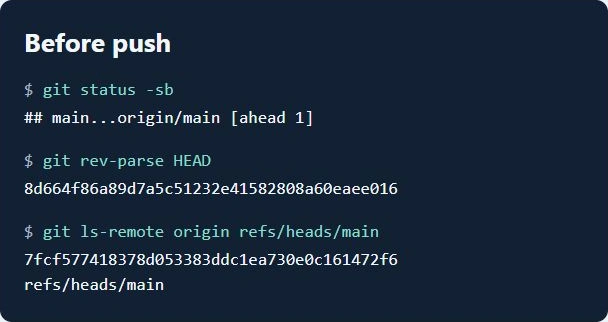
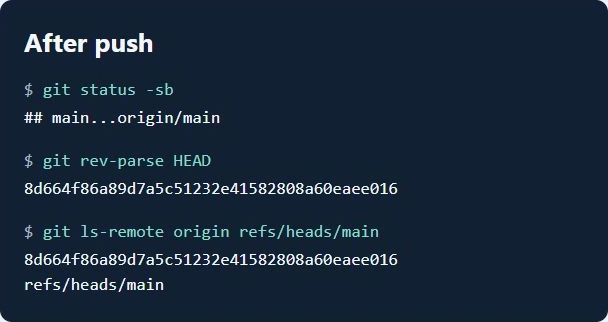
Both panels are captures of our Git command output. Read the bottom row first. The remote branch moved from 7fcf577 to 8d664f8. The middle row, local HEAD, stayed at 8d664f8 throughout the push. The commit already existed on the left. The push transferred the objects the remote needed and advanced its branch.
Reproduce the two states with one file
Start in a fresh, empty directory in Git Bash or a POSIX shell. The first block creates a disposable local remote so you can repeat the experiment without a GitHub account. The example identity applies only to this working repository. We ran the Git commands with git version 2.55.0.windows.4 and wrote the two file lines from a test harness. The shell commands below reproduce those writes.
git init --bare remote.git
git init -b main work
cd work
git config user.name "Demo"
git config user.email "demo@example.invalid"
git config commit.gpgsign false
git remote add origin ../remote.git
printf 'First line
' > notes.txt
git add notes.txt
git commit -m "Start notes"
git push -u origin main
The first push establishes origin/main as the upstream. Now add a second line, stage it and commit it. Stop before pushing so you can observe both states.
printf 'Second line
' >> notes.txt
git add notes.txt
git commit -m "Add second line"
git status -sb
git rev-parse HEAD
git ls-remote origin refs/heads/main
git add stages the file contents. git commit records those staged contents in a new local snapshot. A clean working tree tells you the edit was recorded. The [ahead 1] on the branch line tells you the new commit is ahead of your local record of the upstream. That tracking record can be stale, so the third command asks the remote itself which commit its main branch currently names.
git push
git status -sb
git rev-parse HEAD
git ls-remote origin refs/heads/main
After the successful push, the two IDs match and the ahead count disappears. Your hashes will differ from ours. Compare the two values within your run.
If GitHub still shows the old version
- The IDs match. Check the repository and branch selected on GitHub. A push to a feature branch can succeed while the default branch still shows the old file. Open the pushed branch or its pull request.
- The remote looks unfamiliar. Run
git remote -vand check the push destination. A fork and its upstream repository can contain branches with identical names. - Git reports no upstream. Use
git branch -vvto inspect the branch. Once you have confirmed the intended remote and branch,git push -u origin <branch>establishes tracking. - The push was rejected. Read the reason. For a non-fast-forward rejection, fetch and inspect the remote changes before integrating them. A protected branch may require a pull request.
On a shared project, another contributor can push at any time. Treat the remote ID as an observation at the time of the query. This experiment exercised Git’s branch behavior using a local remote. GitHub sign-in, permissions and branch protection depend on the hosted repository.
Git references: commit, push, status and ls-remote. The reader question was inspired by Mindung’s Git commit and push Short.