AI Technical Articles
Gemini Skill Sharing: Drive Files and Permissions
A shared AI workflow should give colleagues the instructions they need without quietly widening access to the evidence behind it. Gemini skill sharing makes that distinction worth checking: a skill and its linked Drive files have separate permissions.
This guide separates the reusable instructions, the source documents and the people who can change either one. It then proposes a small project-update test for checking access and output quality before using real team information.
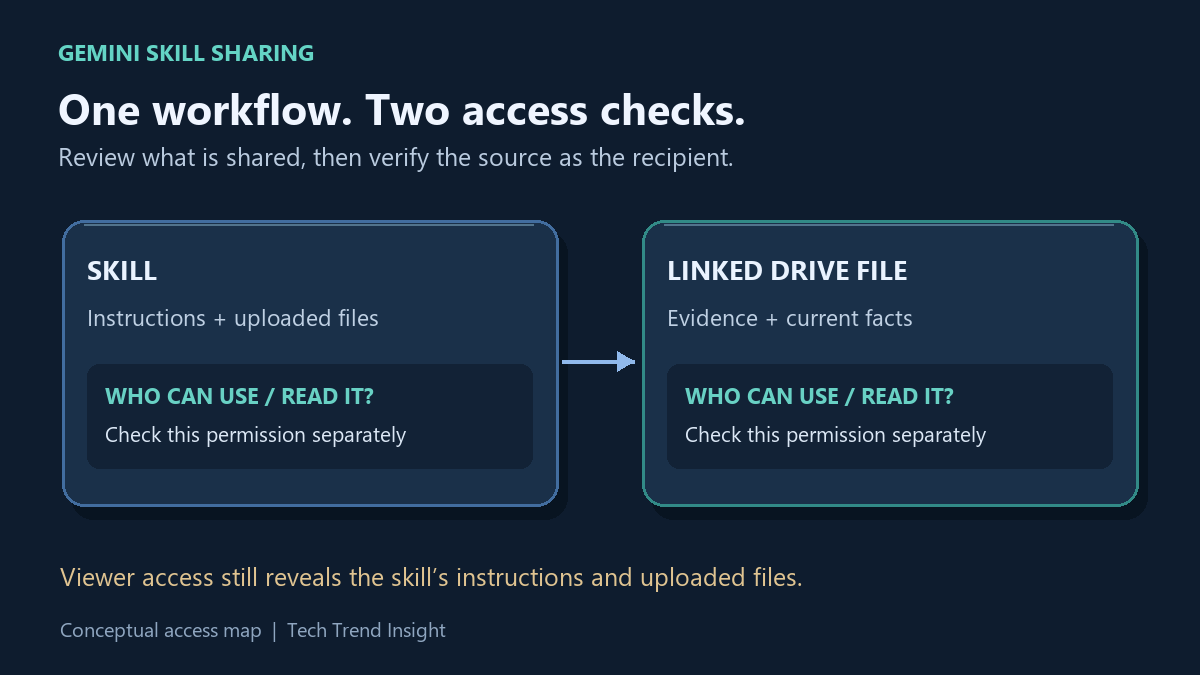
Think of the skill as a recipe and a linked Drive document as an ingredient with its own access controls. The analogy has a limit: information pasted into the recipe, or uploaded with it, is already part of what you are sharing. A separate link does not protect a secret copied into the instructions.
What a Gemini skill contains
A skill saves instructions for repeated work, such as turning project notes into a weekly update. It can guide how Gemini performs the task while a referenced document supplies the current facts. Gemini can select an active skill when relevant; you can also choose one explicitly. See Google’s skill guide.
A skill can therefore capture rules such as:
- use a fixed structure for a weekly project update;
- report missing dates rather than inventing them;
- do not assign an owner unless the source identifies one;
- consult a referenced status document for the underlying facts.
Google also supports creating a skill from a SKILL.md file or a folder containing that file and supported reference material.
The important distinction is that the skill describes how to perform the work, while a referenced document can provide information used to perform it.
What Google added to skill sharing
Google announced expanded skill sharing on November 16, 2026. Recipients can review a shared skill before adding it, then select it with @ or let Gemini use it when active and relevant.
Skills can also include files from Google Drive, Gemini Notebook and Google Photos, in addition to files from the user’s device. Google says Drive files and Notebooks remain connected to their latest versions rather than becoming static copies inside the skill.
That makes a useful pattern possible: keep relatively stable instructions in the skill while maintaining changing facts in a Drive document. As checked November 17, the announcement says the gradual rollout began November 12 and may take up to 15 days. Sharing and access management are currently on the web, so a missing mobile control does not by itself indicate a permissions problem.
The critical permission boundary
The skill and its referenced Drive files have separate access requirements.
Suppose Alice creates a skill that tells Gemini how to prepare a project report and adds a Drive document containing the current project status. She then shares the skill with Bob.
Giving Bob access to the skill is not enough to give him access to the Drive document. Google specifically instructs users to share access to Drive files included in a skill.
This means a shared workflow has two permission questions:
- Who can view or edit the skill?
- Who can access the Drive information on which the skill depends?
They should be checked separately. Giving a colleague permission to run the workflow is a different decision from letting that colleague rewrite the instructions or edit the source facts.
Viewer is still a disclosure decision
Google’s access-level documentation says skill Viewers can inspect the description, instructions and uploaded files. Editors can change instructions and uploaded files and share the skill onward. Use Viewer when someone only needs to run the workflow. Review the skill’s own contents before sharing; do not treat them as hidden implementation details.
For example, replacing a confidential client name with a Drive link is useful only if you also remove that name from the instructions and uploaded examples. Linked Drive permissions do not undo information already disclosed inside a shared skill.
Organizational policies add another layer. Google says Gemini skill sharing follows the organization’s Google Drive sharing settings. If Drive content can be shared outside the organization, skills can also be shared externally. Administrators can disable skill sharing in the Admin console, while Google’s announcement says there is no separate administrator control for adding files to skills.
Do not switch a source file to “Anyone with the link” just to clear a failed run. Inspect the actual recipient and any inherited group or folder access first. Drive’s sharing guide explains that parent-folder permissions can determine a file’s effective access. A narrowly shared file inside a broadly shared folder may not be as narrow as its owner assumes.
A practical way to test a shared skill
Before using this setup with sensitive material, test the permission model with a low-risk recurring task.
For example, consider a skill named draft-weekly-project-update. Its instructions could require Gemini to:
- produce the same set of headings each week;
- use an included project-status document as its source;
- flag missing dates;
- avoid inventing owners;
- state when the source lacks information needed for a section.
Add one controlled Drive document containing the changing project information. Google supports choosing Google Drive, Google Photos or Notebooks when adding files to a manually created skill.
The following is a proposed test using invented project data, not a report of a test we ran:
- Establish the input. Put two items in a dedicated test document: “Atlas — review due 24 November; owner Mina” and “Beacon — due date missing; owner not assigned.” Add a version label such as
TEST-01. - Check the recipient’s direct access first. Use an intended test account that can open the skill. Before granting the source file, check whether that account can already open it through a group or folder. If it can, this is not a useful missing-access test.
- Try the missing-source case. Ask the skill for the project update and the source version. If it produces a polished report while the test account cannot open the source, treat the factual content as unverified. Do not assume the model read a document simply because its answer looks complete.
- Grant only the access the test requires. For a real rollout, have the document owner share it with the intended recipient under the organization’s policy. Repeat the request in a new conversation so earlier pasted facts do not confuse the comparison.
- Check facts, omissions and freshness. Atlas should retain its stated date and owner. Beacon should remain explicitly incomplete. Change the source label to
TEST-02and one harmless fact, then request another update and compare it with the document.
The version label is a diagnostic clue, not proof that every source detail was read correctly. A correct label alongside an invented owner still fails the test. Live source access also means a later run can use changed facts; keep the source version and run time with any report that needs review.
If direct file access works but the skill still cannot use the source, check the intended account, selected skill, organization policy and connected-app availability before widening sharing. Google’s skill guide notes that turning Keep Activity off leaves skills usable but disables features such as Connected Apps, including access to Workspace services. An administrator or account owner should decide the appropriate configuration.
Decide who needs to run, change and read
A practical rollout has three decisions: who may use the skill, who may change its instructions, and who may read the underlying source. Give each person only the role required for that job. Then validate a representative result against the source, including what the source leaves unknown.
A shared skill is ready for a team when the intended recipients can use the intended evidence and its owner can explain the access boundary. A successful-looking answer alone does not establish either condition.